HostGTPro: How to View and Pay Invoices
This guide explains how to access your invoices, view details, and make payments in the HostGTPro Client Area. Keeping invoices paid on time ensures uninterrupted service.
Step-by-Step: Viewing and Paying Your Invoices
Viewing Your Invoices
- Log in to your Client Area at https://hostgtpro.com/clientarea.
- In the top menu, click Billing > My Invoices.
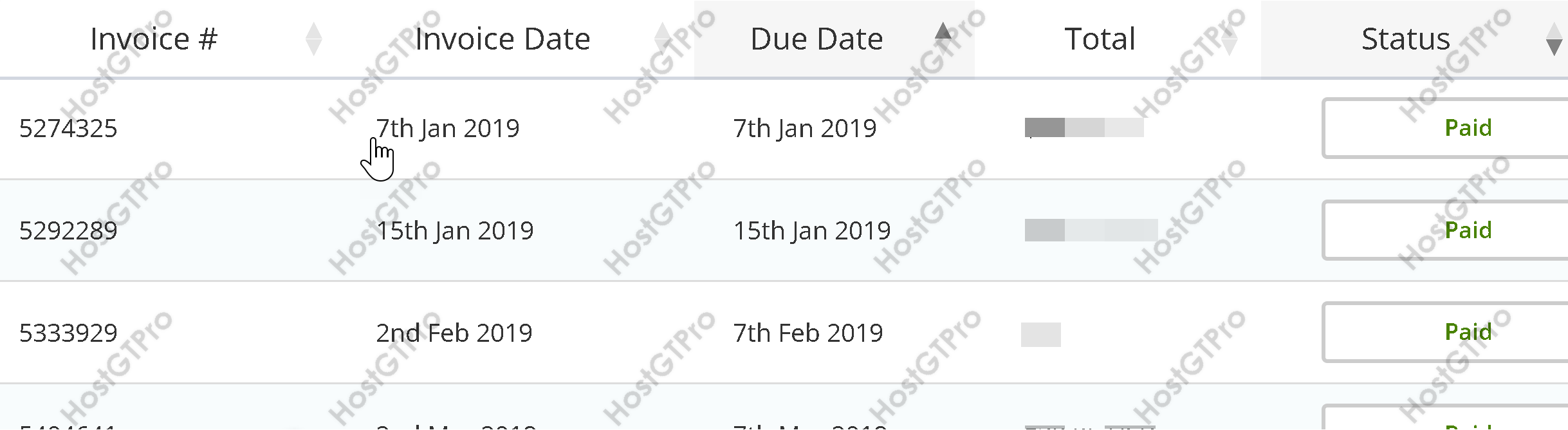
- You will see a list of all invoices, sorted by date. Each shows:
- Invoice number
- Date issued
- Due date
- Amount (in USD)
- Status (Paid, Unpaid, Overdue, etc.)
- Click the invoice number or the View Invoice button to open the full PDF details.
Paying an Invoice
- From the invoice list or the open invoice, click Pay Now (available only for unpaid invoices).
- Choose your payment method:
- PayPal (redirects to PayPal for secure checkout)
- Saved credit/debit card (if previously added)
- Confirm the amount and complete the payment.
- You will receive a confirmation email, and the invoice status will update to Paid.
Tips and Common Questions
- Set up auto-pay: Go to Billing > Payment Methods to add a card and enable automatic payments for future invoices.
- Download PDF: Use the Download PDF button on any invoice for your records.
- Overdue invoices: Services may be suspended 7 days after the due date. Pay immediately to avoid interruption.
- Currency: All amounts are in USD.